Downloading KanexPro software and firmware safely
How KanexPro checks firmware and software downloads, how to verify a file's SHA-256 fingerprint, what the Windows SmartScreen warning means, and…


The FLEX chassis supports Quad View mode — displaying up to four independent sources simultaneously on a single display output in a divided layout. This is useful for monitoring multiple feeds, command center walls, sports bar screens showing multiple games, and broadcast confidence monitoring.
The FLEX chassis supports multiple multiview layout options per output:
In multiview mode, the FLEX chassis internally composites multiple input signals and outputs them as a single combined image on one display port. Each window in the layout is independently assigned to any input in the system.
The FLEX chassis can run standard routing, quad view, and video wall modes simultaneously across different output ports. For example:
Each output’s mode is independently configured — no system-wide mode change required.
How KanexPro checks firmware and software downloads, how to verify a file's SHA-256 fingerprint, what the Windows SmartScreen warning means, and…
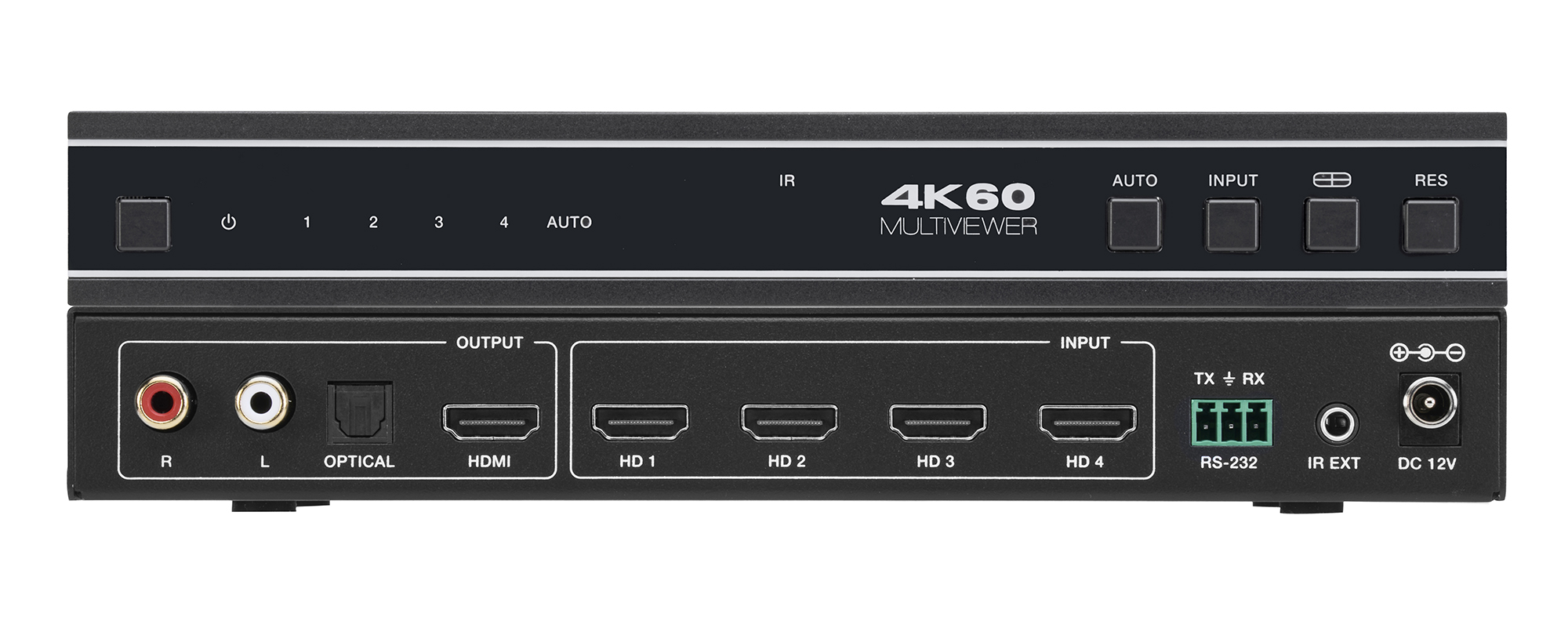
The VW-MVIEW4X1 zip holds Controller 1.0.11, firmware MCU V1.00.15 and scaler 2025-03-03, and both guides. All work over RS-232 at 115200 baud.
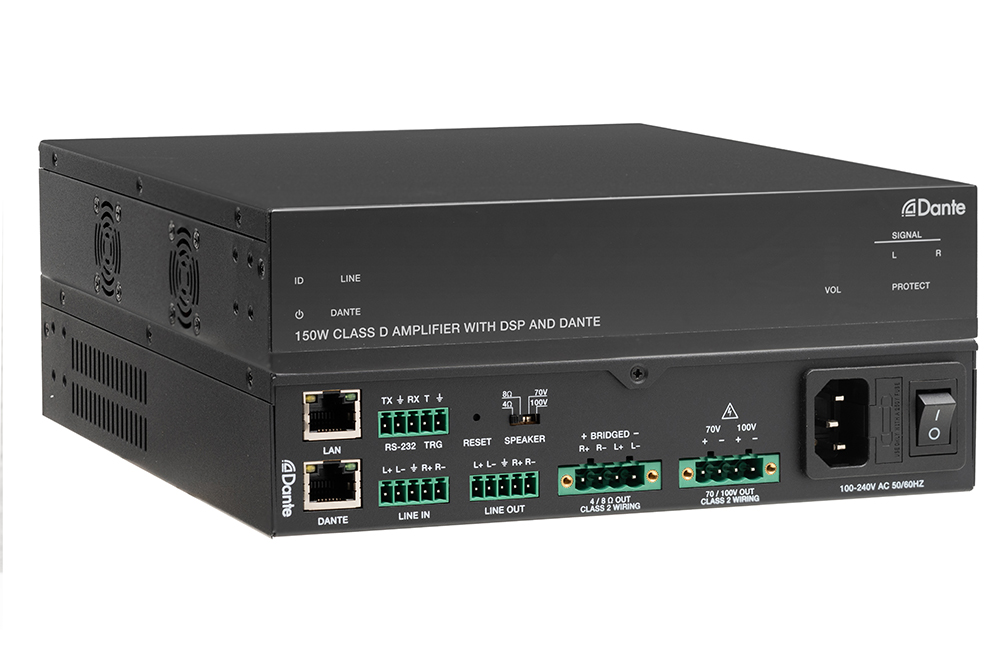
Boardrooms, conference rooms, campuses, lobbies — real-world deployment scenarios Corporate AV is among the most practical deployment target for…
KanexPro sells direct to dealers, resellers, installers and integrators, and through distribution. Whichever way you buy, the same engineers answer the phone.
The trade store: your own account, live stock, reordering, and a first look at new products.
Go to the trade store →Distribution and authorised resellers across the US and beyond.
See where to buy →Design help on extenders, matrix and AV over IP before you spec it.
Ask an engineer →